Auto Subtitles in Reelora: From Speech Recognition to a Finished Clip
Reelora creates automatic video subtitles: it recognizes speech, splits it into lines and burns the text into your clip. All you have to do is proofread and pick the look.
Subtitles aren't a small detail — they're half your views
Picture this: someone is scrolling their feed on the metro where there's no sound, or sitting at work where turning on speakers would be awkward. If your clip has no text, they see moving images with no meaning and simply scroll past. Video subtitles turn that missed chance into a message that actually gets read.
For vertical formats it's critical. In Shorts, Reels and TikTok, viewers decide within the first seconds whether to keep watching, and it's the subtitles that hold their attention to the end. How to put together such a clip from start to finish is covered in our shorts guide.
There's a practical side too: text helps people who absorb information better visually, watch in noisy places, or aren't native speakers of the language. So automatic subtitles aren't decoration — they're a way to get your message across to a much bigger part of your audience.
- Your clip makes sense even without sound
- Better attention retention in vertical feeds
- Comfortable viewing on transit, at the office and outdoors
- Your message reaches a wider audience
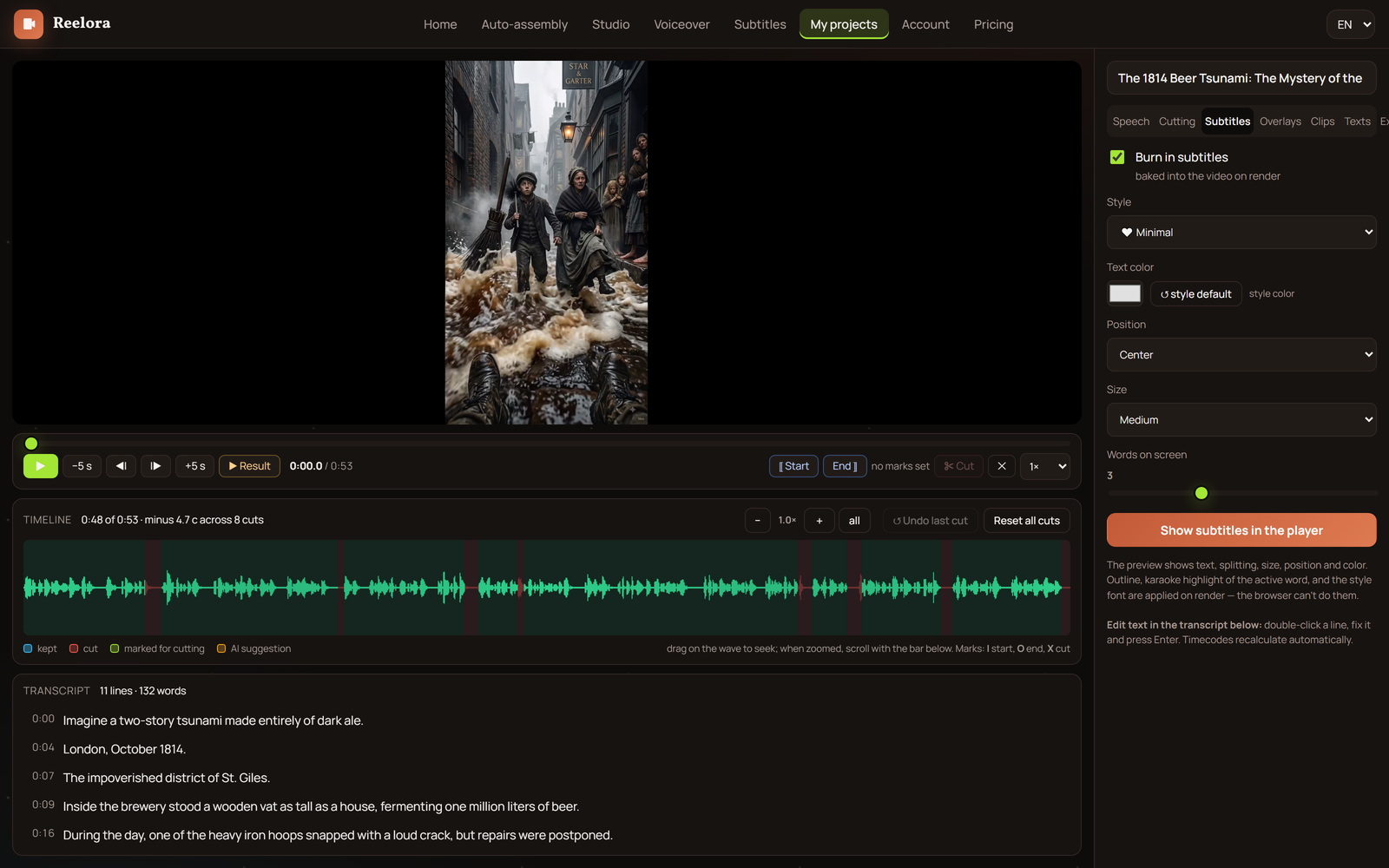
How automatic speech recognition works
AI listens to the audio track, converts speech into text and immediately breaks it into short lines. The splitting matters: each phrase has to fit on screen and be read exactly while it's being spoken. Nobody finishes reading long paragraphs on screen.
If your clip was built entirely in Reelora — with a script and ElevenLabs voiceover — subtitles sync with scenes automatically: each line appears exactly when the voice speaks it. We've written separately about how the voiceover works in our text-to-speech section.
Text after recognition isn't set in stone. You can fix any line by hand — and only then burn the subtitles into the video. That way control stays with you while automation saves you time.
How to add subtitles to video in Reelora
Create or upload a clip
Generate a video in the studio or upload your own footage to the project. Both paths lead to the same editor.
Run recognition
Reelora will listen to the audio, convert speech into text and split it into short lines synced to the sound.
Proofread the text
AI rarely makes mistakes, but names, titles and terms are worth checking yourself. Fix them right in the list of lines.
Pick the look
Font, size, color, outline, keyword highlighting, position on screen — everything is set up in a few clicks.
Burn the subtitles into the video
After that the text becomes part of the image and is guaranteed to be visible on any platform.
Review and export
Scroll through the clip and make sure the subtitles don't cover important details in the frame. Then publish.
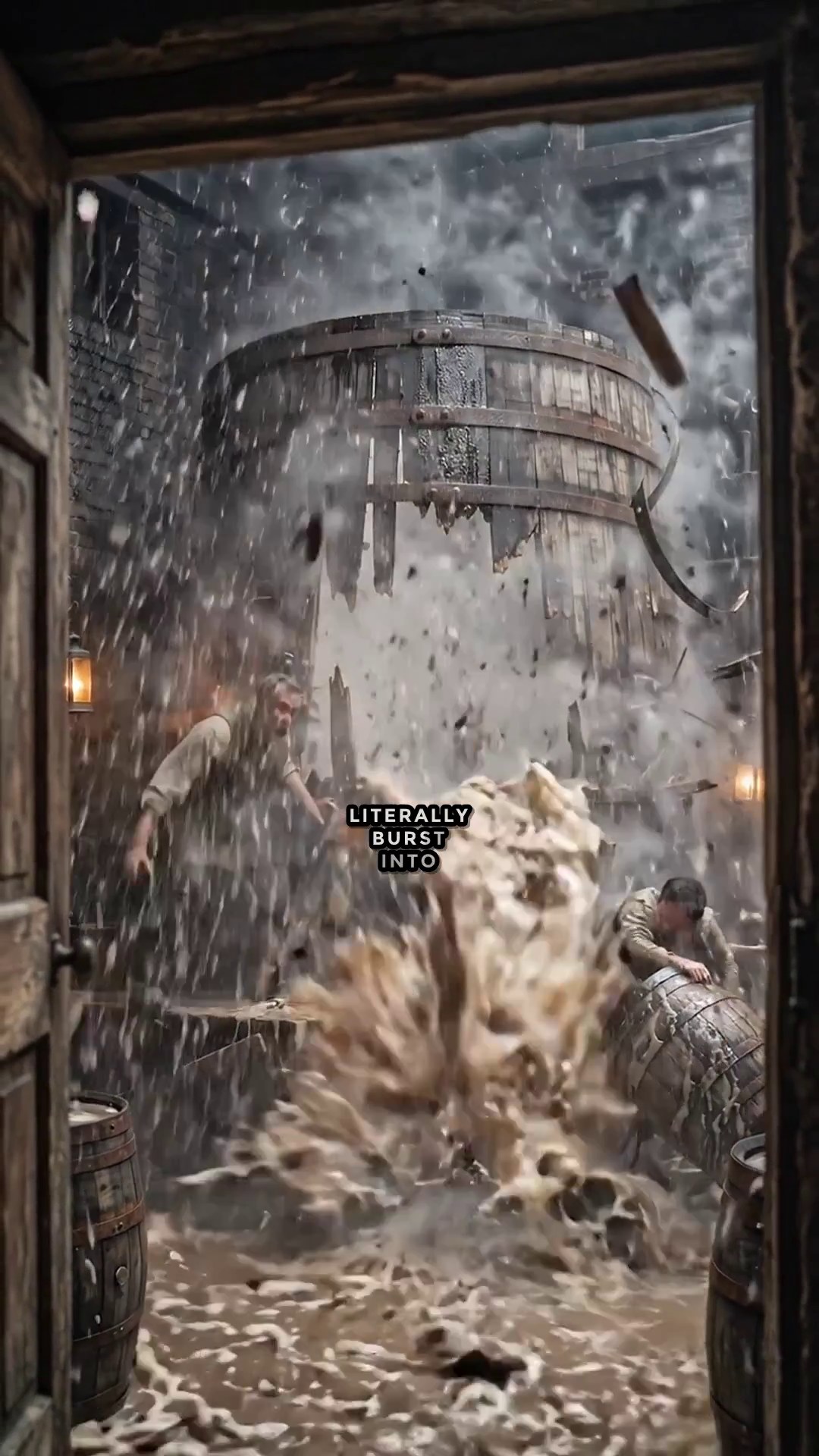
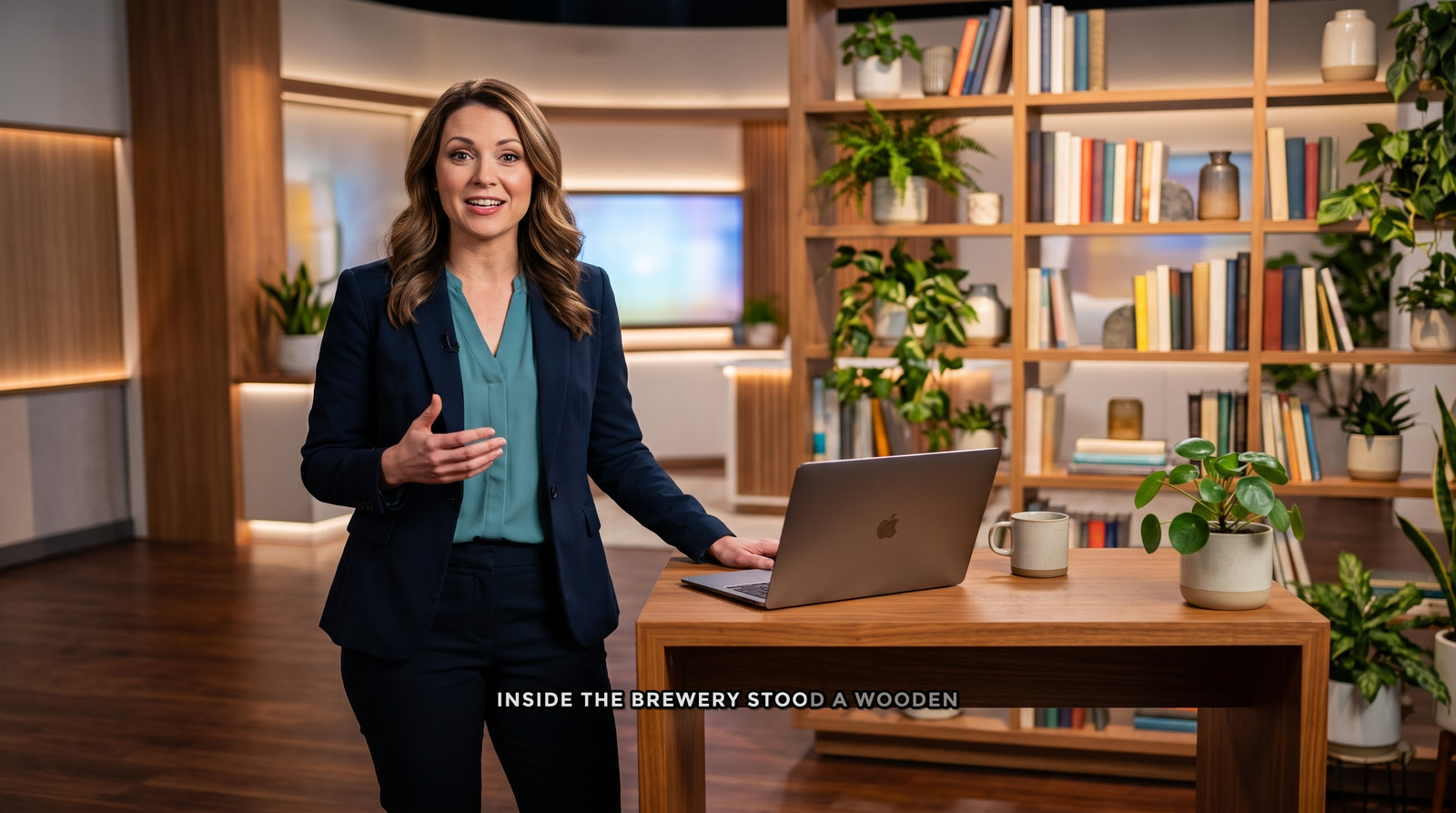
Styling: font, outline, highlighting
The main rule is readability. On bright or busy backgrounds, text is saved by an outline or semi-transparent backing: letters stay contrasty on any frame.
As for the font itself: simple sans-serif fonts work best on screen. Fancy typefaces look beautiful in mockups but are hard to read on video in a split second.
Size depends on the format. Vertical clips, which are most often watched on a phone, need noticeably larger subtitles than horizontal ones — otherwise they're simply invisible on a small screen.
Keyword highlighting is a trick that came from shorts: one or two words in a line get picked out in color, and the viewer's eye latches onto the accent. It works for retention but demands restraint — if you paint half the text, the effect disappears.
One more thing: remember the zones covered by platform interfaces — buttons, descriptions, progress bars. Place the text so nothing disappears under app elements.
Which subtitle style fits which task
Shorts, Reels, TikTok
Large centered subtitles, bold font, bright keyword highlighting. Here the text is a full part of the show.
Educational videos
Calm sans-serif font, white color, thin outline, positioned at the bottom of the screen. Nothing distracts from the explanation.
Promos and ads
Brand colors, short phrases, clear accents. Subtitles work alongside the logo and call to action.
Faceless channel
The same style across every episode in the series. That's how a channel becomes recognizable and the delivery feels cohesive.
Subtitles on your own footage
Reelora doesn't only work with generated frames. If some of your material is already shot, add your files to the project — and you can add subtitles exactly the same way.
It's handy for mixed clips: half the frames are yours, half are generated, and editing, voiceover and subtitles all come together in one place. How to bring in your own files is shown in our guide to using your own photos and videos.
Speech recognition works with your audio track just like with studio voiceover: record your voice even on a phone — text with lines will appear automatically.
Questions about automatic subtitles
Do I have to type subtitles manually?
No. Reelora recognizes speech and splits it into lines automatically. You just proofread the text and fix individual words if needed.
Can I add subtitles to my own footage?
Yes. Add your footage to the project — recognition, styling and burn-in work the same way as for generated clips.
What does "burning subtitles into video" mean?
Subtitles become part of the image itself. Any viewer on any platform will see them, regardless of player settings.
Can I edit lines after recognition?
Yes, before burning them in the text is fully under your control: fix words and phrasing until you're happy with the result.
What language are the subtitles in?
Subtitles match the language of the voiceover or audio track of the clip. Voiceover in Reelora supports many languages, including Ukrainian.
How much do automatic subtitles cost?
Reelora works on a pay-as-you-go model: you pay only for what's actually generated. Prices are among the lowest on the market — see current pricing on the website.
Are subtitles needed if the clip already has voiceover?
Yes. A large share of viewers watch without sound, especially in vertical feeds. Subtitles don't replace voiceover — they complement it.
Can I change the subtitle style after burning them in?
Burned-in text is part of the frame, so it's best to finalize the style before burning. If something doesn't look right, go back to settings and re-render the clip.
See also
Make a subtitled clip in one sitting
Generate video, add voiceover, apply subtitles and edit everything in one studio — no jumping between services.
Try Reelora