Swap in your own shots — and hit edit
Most generators only spit out clips — but Reelora works with your footage too. Drop in what you've filmed instead of generated shots, cut it to the voiceover, and edit your entire video right in the browser.
A studio that takes your footage, not just generates it
Sound familiar? Half your video is already shot on your phone, but you can't finish the rest because the service only works with its own clips. Reelora is the opposite: at any point you can drop in your own photo or video in place of a generated shot and calmly keep working on the project. No separate editors, no exporting back and forth, no manual stitching.
That's the key difference between a studio and a regular "generator". Here, a text prompt is just one source of shots. Your files live right alongside it: product photos, camera footage, archived videos. The AI puts your shots on equal footing with generated ones — and you decide what goes where.
The most common scenarios where this saves the day:
- part of your material is already filmed and you need to quickly fill the gaps with generated inserts;
- your promo needs real product photos, but you'd love to add dynamic B-roll shots;
- you have a long talking video that needs cutting to a voiceover and squeezing into a short clip;
- you want to edit your own video with a voiceover and subtitles without opening heavy editing software.
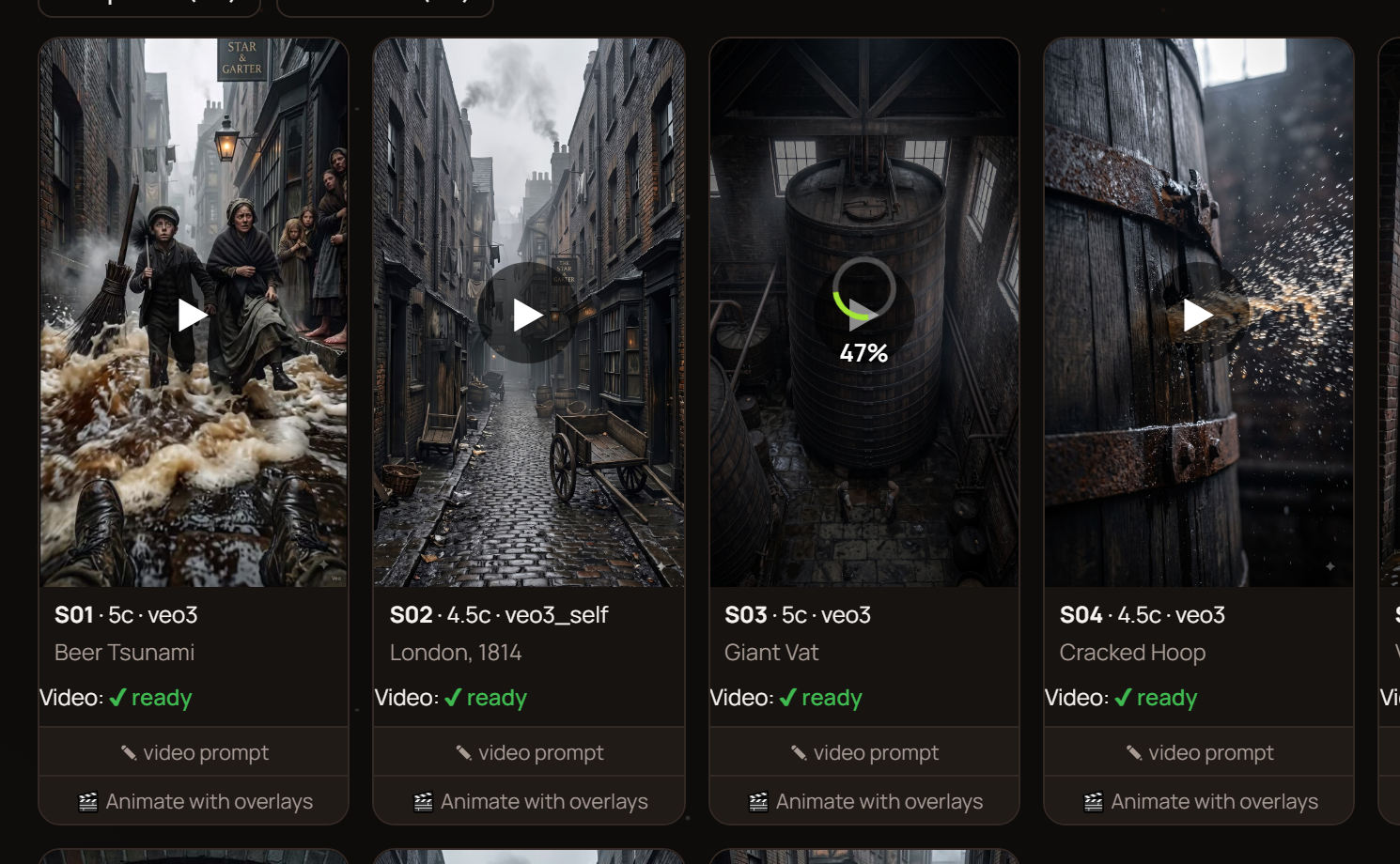
What you can do with your footage in the studio
Replace any shot
Don't like a generated scene? Put your own photo or video in its place. The rest of the timeline stays untouched: voiceover, subtitles and rhythm don't go anywhere.
Cutting to the voiceover
Upload your recorded clip — and the AI cuts the video to the voiceover: it reads the transcript, removes takes, repeats and stumbles, keeping only what actually sounds good.
Mixing with generated content
Real shots and generated ones sit side by side in the same video. You decide the order of scenes, while automatic assembly tunes the rhythm and transitions between them.
Targeted regeneration
Any single shot can be regenerated or replaced on its own, without touching the rest of the video. A mistake in one scene no longer means restarting the whole project.
How to add your own shots: step by step
Build the video skeleton
Start the long-video or shorts mode — the AI builds a script with prompts for voiceover, references, photos and videos. Read more in the long-video mode guide.
Pick the scene to replace
Click the shot thumbnail in the timeline — the one that should give way to your file. It can be any scene in the project.
Upload your file
Grab a photo or video from your computer. It becomes a full-fledged scene: the AI processes your shots by the same editing rules as generated ones.
Polish it if needed
You can trim the fragment a little, and layer overlays and effects onto a still photo to bring it to life. We cover that special case below.
Hit assemble
One button, and automatic assembly lays out every shot to fit the voiceover: rhythm, transitions, sync with the lines. See how it works in the AI editing overview.
Review and fix spot-on
Something off? Replace or regenerate that specific shot again. No need to rebuild the project from scratch.
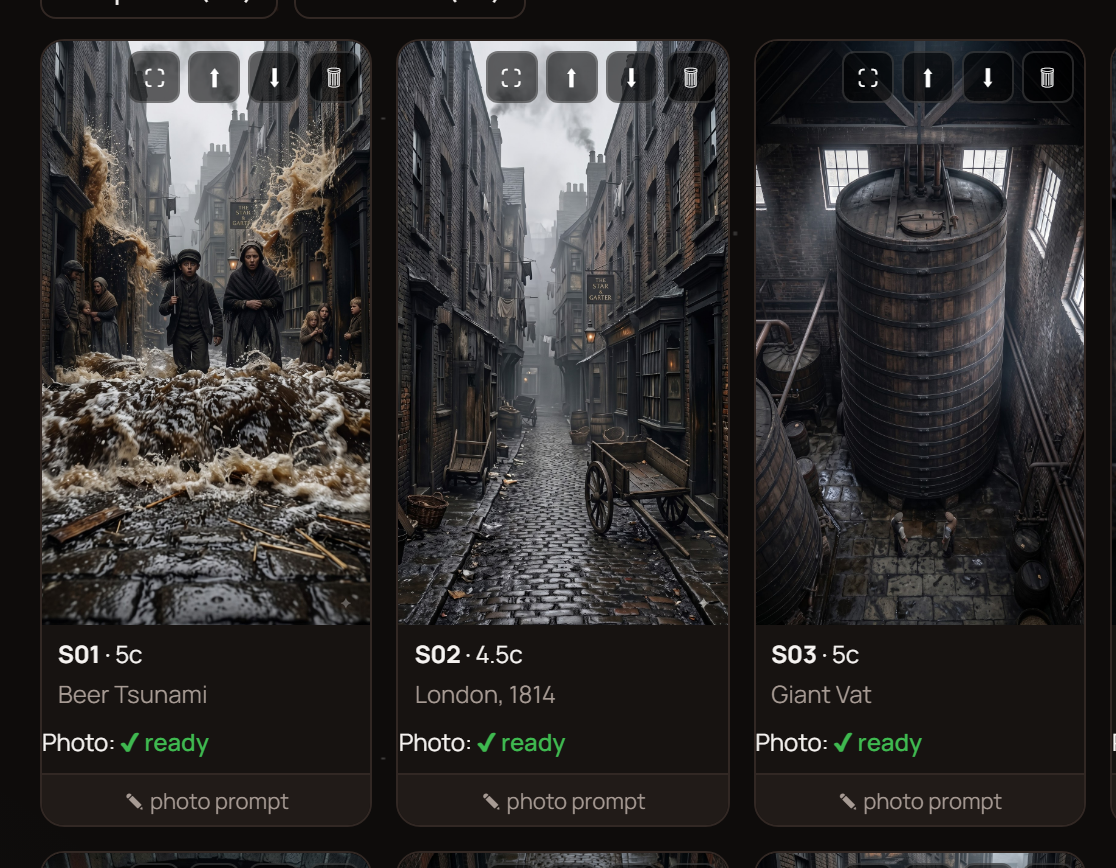
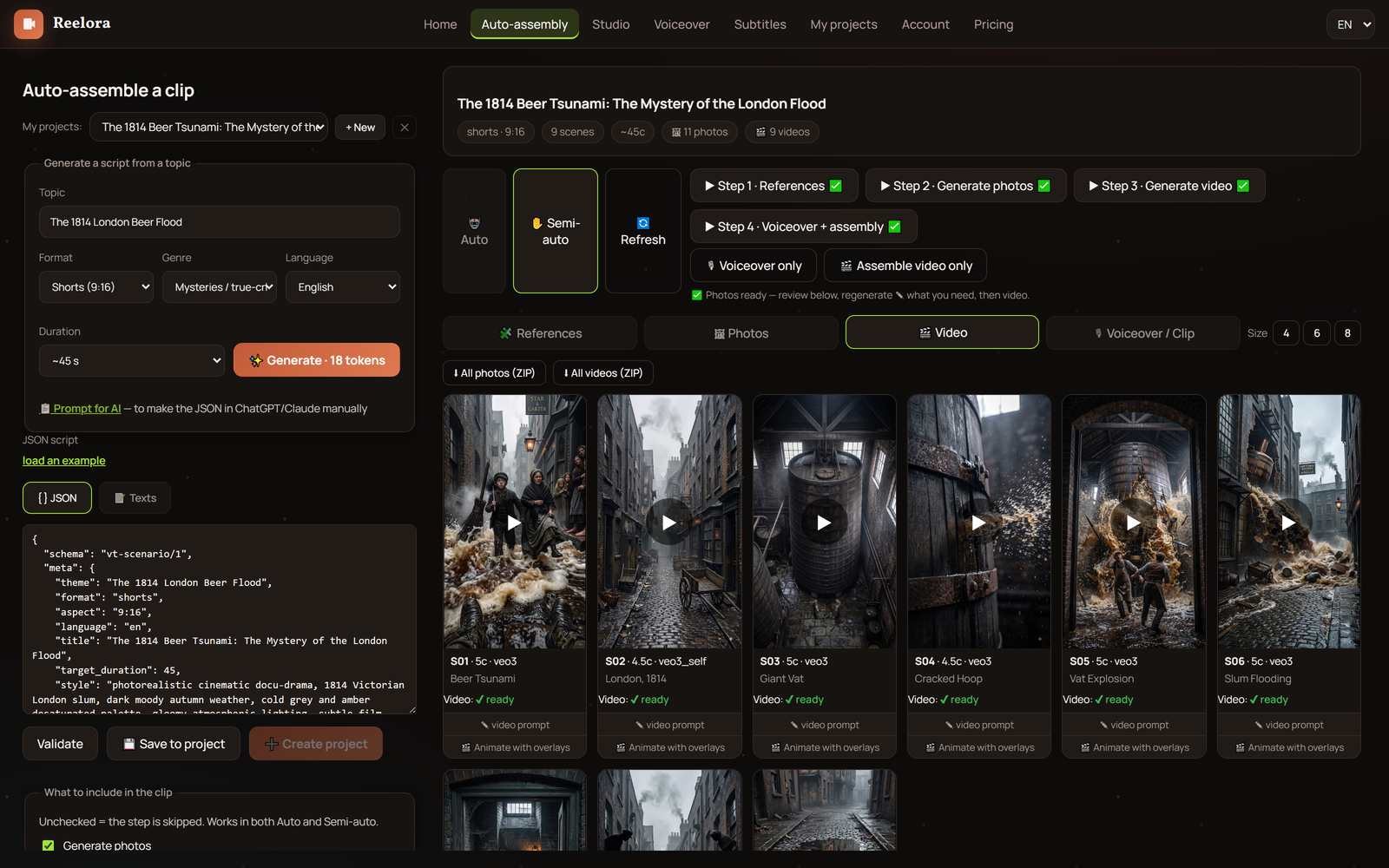
Photos the AI won't animate: the overlay-and-effects workaround
Honestly, there are shots the model refuses to animate: moderation kicks in, or the scene is too technically complex. It would be a real shame to throw away a good photo over that.
That's why Reelora has a backup move: you can layer effects and overlays onto such a photo to turn a still image into moving video. The camera seems to glide across the frame, light accents, particles and smooth transitions appear — and the photo stops looking like a frozen slide.
The full set of techniques and examples is in the overlays and effects guide. And if you specifically want model-powered image animation, check out the image-to-video article.
Editing that counts the seconds for you
Once the shots are in place — yours and generated together — the most tedious part of classic editing begins. Reelora takes that on itself: automatic assembly fits the shots to the voiceover, keeps the rhythm and places transitions between scenes.
A separate bonus is smart trimming. The AI reads the transcript of your recorded video and removes takes, repeats, stumbles and filler. This isn't mechanical silence-cutting: the system understands what's actually said and keeps the substance. More on how it works in the smart trimming overview.
Voiceover on ElevenLabs voices stays synced with scenes and subtitles, so even after swapping shots the video sounds cohesive. Lines and subtitle styling are configured right here, in the same project.
Questions about working with your own footage
Can I build a video entirely from my own files, with no generation at all?
Yes. Generation is an option, not a requirement: upload your photos and videos, add a voiceover and subtitles, and you can edit your whole video from your own material alone. In this case the AI handles the cutting, rhythm and assembly.
Does replacing one shot break the rest of the video?
No. Every shot in the project is independent: it can be regenerated or replaced separately, while the voiceover, subtitles and scene order stay put. Assembly simply rebuilds the timeline around the new fragment.
What if the AI refuses to animate my photo?
Layer effects and overlays onto it: they turn a still image into moving video without generation. That's the standard route for shots that fail moderation or are too complex to animate.
Can the studio handle long recorded footage?
Yes. Smart trimming reads the transcript and removes takes, repeats, stumbles and filler, so you can cut video to a voiceover even from a big source file. Long formats are easier to prepare via the long-video mode.
Do the voiceover and subtitles stay in sync if I swapped in my own shots?
Yes. Voiceover on ElevenLabs voices is tied to scenes and subtitles, so after replacing shots the sync doesn't fall apart. Lines and subtitle styling are configured in the same project.
How much does editing with my own files cost?
Reelora runs on a pay-as-you-go model: you pay for what's actually generated, at some of the lowest prices on the market. Check the site for current pricing — numbers change, so we don't pin them down in our texts.
Can I combine my own shots with batch generation?
Yes. Run a batch of tasks, and once results are ready, replace some scenes with your filmed material. The skeleton from long-video mode anticipates this: spots for photos and videos are built in from the start.
See also
Try it on your own footage
Upload a couple of filmed shots, use them to replace any scene, and watch the studio assemble the video to the voiceover on its own. Come in, pick a model — and build your first project today.
Create a video