Veo 3 in Reelora: what the model can do and what to do with the clips next
Veo 3 creates video from a text description — and Reelora instantly builds those shots into a finished clip with voiceover, subtitles and editing. We break down what the model can do, where it fits best, and how to get the most out of it.
What Veo 3 is, in plain words
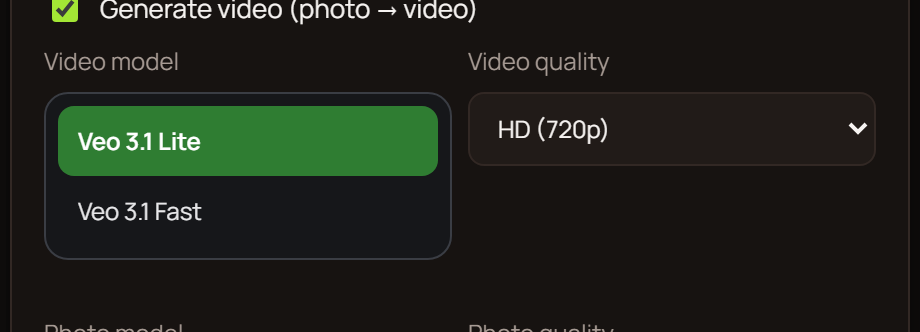
Veo 3 is a video generation model available right inside Reelora. You type a text description of a scene, and the model turns it into a moving shot. There's nothing to install: the studio runs in your browser, and you pick the model for video or images yourself from a dropdown menu. Writing Veo 3 prompts in everyday language works perfectly well — you can describe the scene the way you'd say it out loud.
The key thing to understand right away: Veo 3 video generation is about individual scenes, not a finished film at the press of one button. The model draws the shots, and Reelora then assembles them into a proper video: it builds the script skeleton, adds voiceover, subtitles and editing. To see how the whole pipeline works, check out our overview of the AI video generator.
This division of labor is deliberate. Generating a shot and putting together a video are two different jobs — and when each one has its own tool, you stay in control of the result instead of crossing your fingers.
What Veo 3 handles with confidence
Veo 3 video generation works best when the scene is described concretely: what's in the frame, who's doing what, what the lighting and camera angle are. Here's what usually comes out well:
And pay attention to the last point: in Reelora every shot lives on its own. That's the studio's main advantage over the “generate and pray” approach: you simply swap out a bad piece, and the rest of the video stays intact.
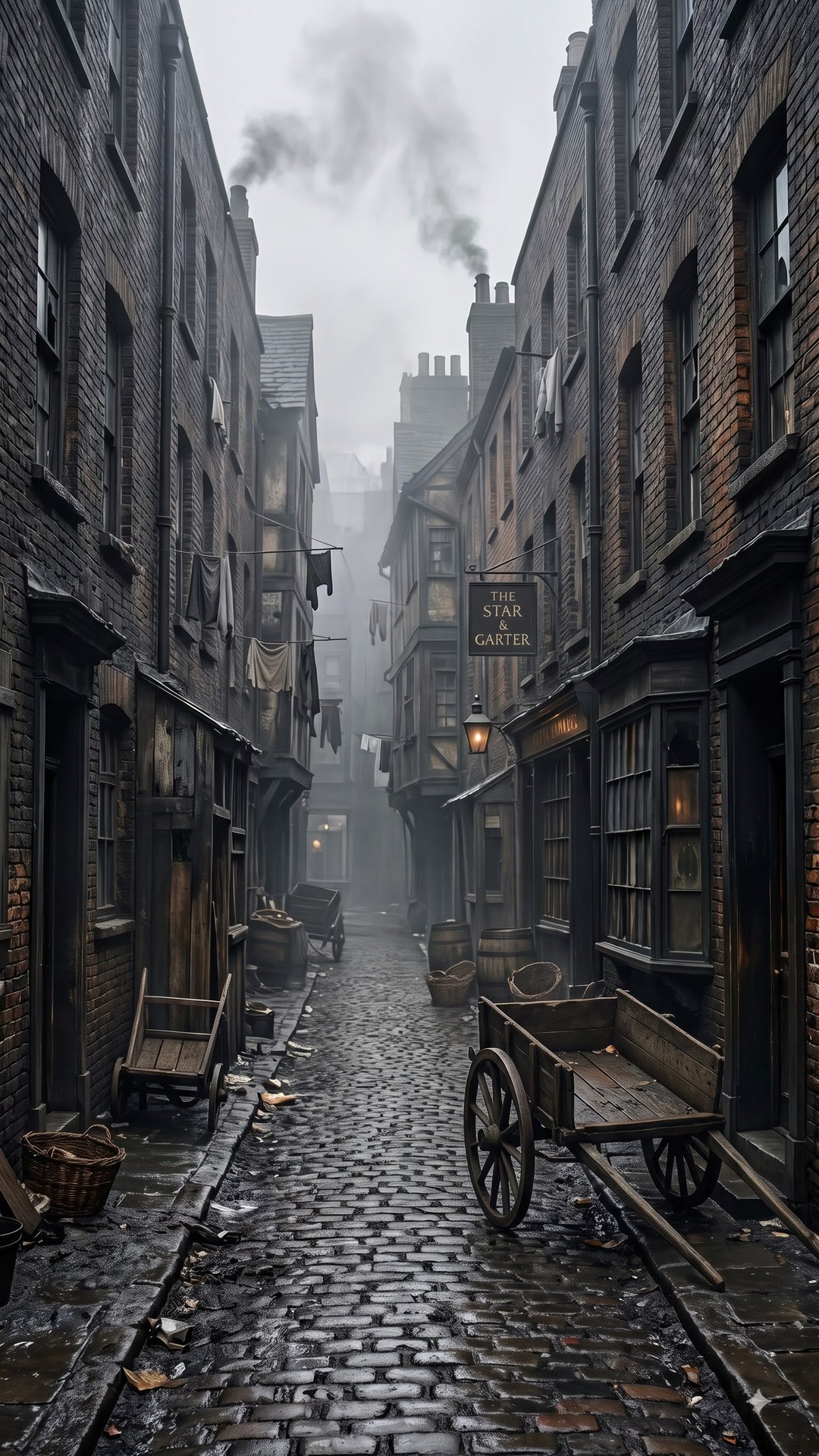
- Atmospheric short scenes: a night city in the rain, a morning café, an office, a road — with cinematic mood and lighting.
- Camera movement when described in words: a flyover of an object, a panorama, a slow push-in.
- Genre stylization: documentary footage, an ad shot, a moody trailer.
- Fast iterations: didn't like a shot? Regenerate just that one without touching the rest of the scenes.
Where Veo 3 still struggles — let's be honest
Every video generation model has weak spots, and Veo 3 is no exception. Better to know them upfront and build your script so they don't get in the way:
None of these points is a death sentence — they're just limits to factor in at the script stage. Below is a table with specific workarounds.
- Long continuous scenes. One unbroken action lasting several minutes isn't what these models are built for. Assemble your video from short scenes with cuts.
- Text in the frame. Captions, signs, logos and small labels often come out with artifacts — letters “melt” and are hard to read.
- Accurate physics. Complex collisions, small-scale mechanics, objects actively interacting — the weakest area of generation.
- Hands and fine motor skills. The classic ailment of generative video: fingers can look strange, especially in motion.
Veo 3 weak spots and workarounds in Reelora
| Issue | What happens | How to work around it |
|---|---|---|
| A long scene without cuts | Continuous action over several minutes comes out unstable | Split the story into short scenes — automatic editing will stitch them to the voiceover |
| On-screen text | In-frame text often comes out with artifacts | Generate a clean shot and add headlines and captions in the Reelora editor |
| Complex physics | Collisions and mechanics look implausible | Simplify the scene description or replace the shot with your own footage |
| A bad shot | It happens even with a good prompt | Regenerate only that shot — the rest of the video stays untouched |
| A photo that won't come alive | The AI may refuse to animate a complex frame | Add effects and overlays to the photo — a static image turns into video |
A Veo 3 clip is the start of your video, not the finish line
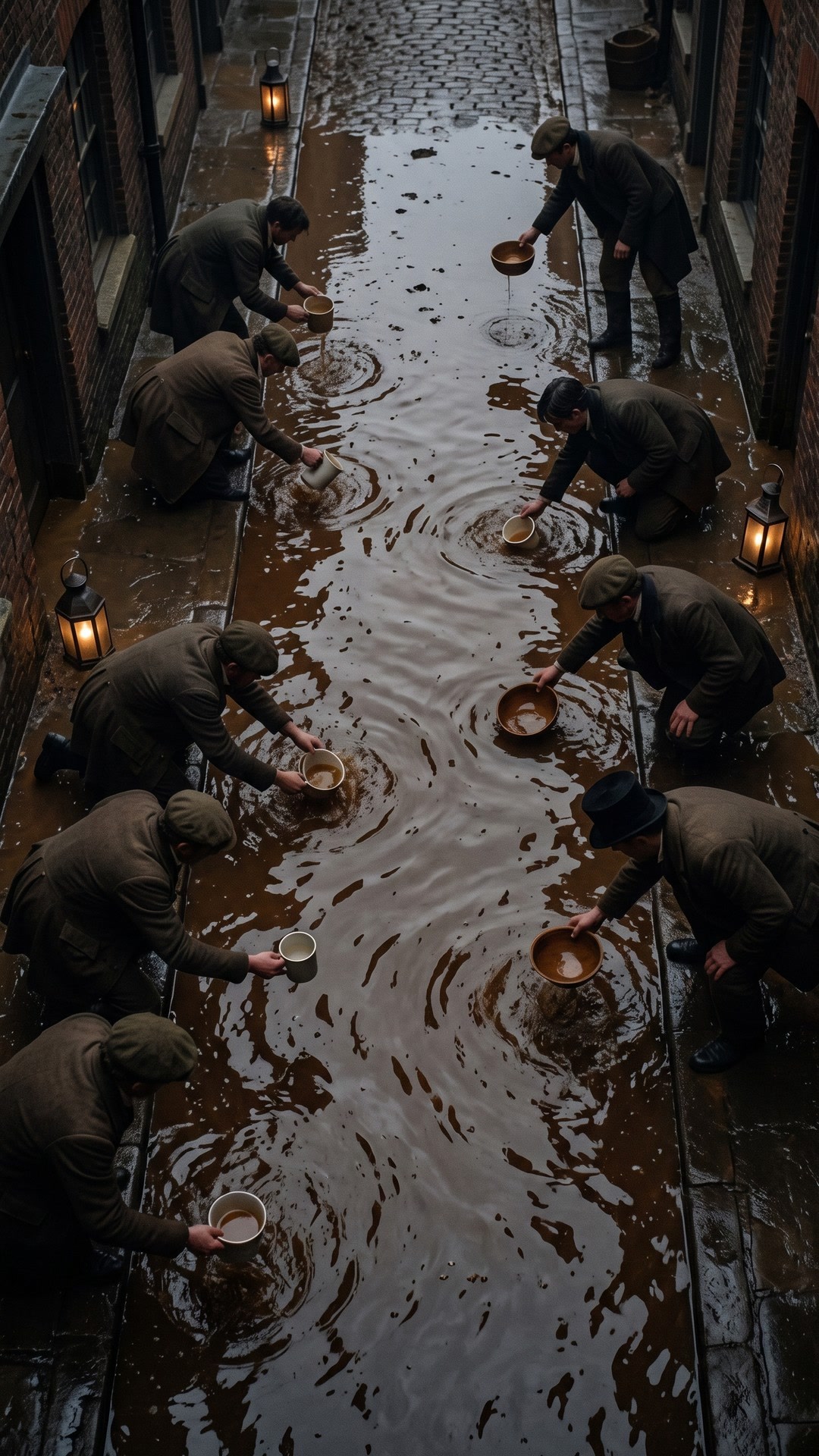
In most services a generated clip is a dead end: download the file and figure out the rest yourself. In Reelora it's the opposite: the shot immediately lands in its spot in the skeleton of your future video. The skeleton is built from your topic, format and language — and it spells out which prompt each scene needs.
Then the rest of the studio kicks in. Voiceover with ElevenLabs voices syncs with the scenes, with multiple languages available. Automatic subtitles recognize speech, split it into lines and burn into the video. Editing fits the shots to the voiceover, keeps the rhythm and creates transitions between scenes.
And yes, your own footage is always welcome: any generated shot can be replaced with your own photo or video. Shot something on your phone — drop it into the video next to the Veo 3 shots, and the edit will bring it all together. Reference images for scenes are easy to generate with Nano Banana — see the Nano Banana overview for details.
Prompts for Veo 3: three habits that save time
Shot quality largely depends on how the scene is described. Three rules that work almost every time:
Ready-made prompt formulas for different tasks are collected separately — check out the video prompts guide.
- One scene — one shot. Don't try to cram a whole story into a prompt: describe a specific moment with a subject, action and setting.
- Concrete details instead of epithets. “Night street, rain, neon reflections on the asphalt, camera slowly pushing in” works better than “beautiful atmospheric video”.
- Don't ask for text in the frame. Add headlines, captions and numbers with the studio tools after generation — that way they're guaranteed to be readable.
Questions about Veo 3 in Reelora
Can I use Veo 3 in my own language?
Yes. You can write prompts in everyday language, and the finished clip can be voiced in different languages through ElevenLabs voices. In other words, the whole cycle — from describing a scene to subtitles — runs in the language you're comfortable with.
How long is a single shot generated by Veo 3?
Shots come out short — that's the natural format for video generation models, and chasing long continuous scenes isn't worth it. That's exactly why a video in Reelora consists of several scenes: editing stitches them together under the voiceover, and the viewer sees a coherent story.
What do I do if a shot turns out badly?
Three options: regenerate just that shot with a refined prompt, replace it with your own photo or video, or apply effects and overlays. The rest of the video stays intact — edits are surgical.
Can I run generation for many scenes at once?
Yes, batch generation lets you launch up to 500 prompts at a time. Tasks run on Reelora servers, so you can shut down your computer — the results will be waiting in your project.
How much does video generation with Veo 3 cost?
We deliberately don't quote numbers here — they change. Payment works on a pay-as-you-go basis: you only pay for what's actually generated, and Reelora's rates are among the lowest on the market. Always check the current pricing on the website.
How does Veo 3 differ from Nano Banana?
Veo 3 generates video, Nano Banana generates images. In Reelora they work as a pair: images become references and illustrative frames, while Veo 3 brings scenes to life. You pick the model for a specific task yourself in the interface.
Do I need a powerful computer to work with Veo 3?
No. All generation runs on Reelora servers — all you need is a browser. The same goes for batch generation: set up your tasks and go do other things while the results are being prepared.
See also
From prompt to finished clip — all in one window
Pick Veo 3, describe a scene — and the script skeleton, voiceover, subtitles and editing are already there in Reelora. You only pay for what's actually generated.
Try Reelora