How to Bring a Photo to Life and Turn It into Video
Image-to-video turns a static photo into a living clip: the camera moves, objects breathe, and the frame becomes video. We break down which images work, how to describe motion, and what to do when the model refuses.
What is image-to-video
Image-to-video is a generation mode where you give the model not text but a ready-made image. The photo becomes the first frame of your future clip, while the prompt describes what happens next: the camera slowly pushes in, a curtain sways in the wind, a person turns their head. The result is a video that starts exactly from your frame.
The main advantage over generating from scratch is control. In text-to-video the model invents the composition itself; here you set it, and all that's left is to describe the motion. That's why bringing a photo to life is the fastest way to get a frame that looks exactly as you imagined.
In Reelora it's not a separate button but part of the studio: a generated frame instantly becomes a scene in your clip. You can regenerate it, swap in your own footage, or remove it — the rest of the edit stays intact.
Which photos work for animation
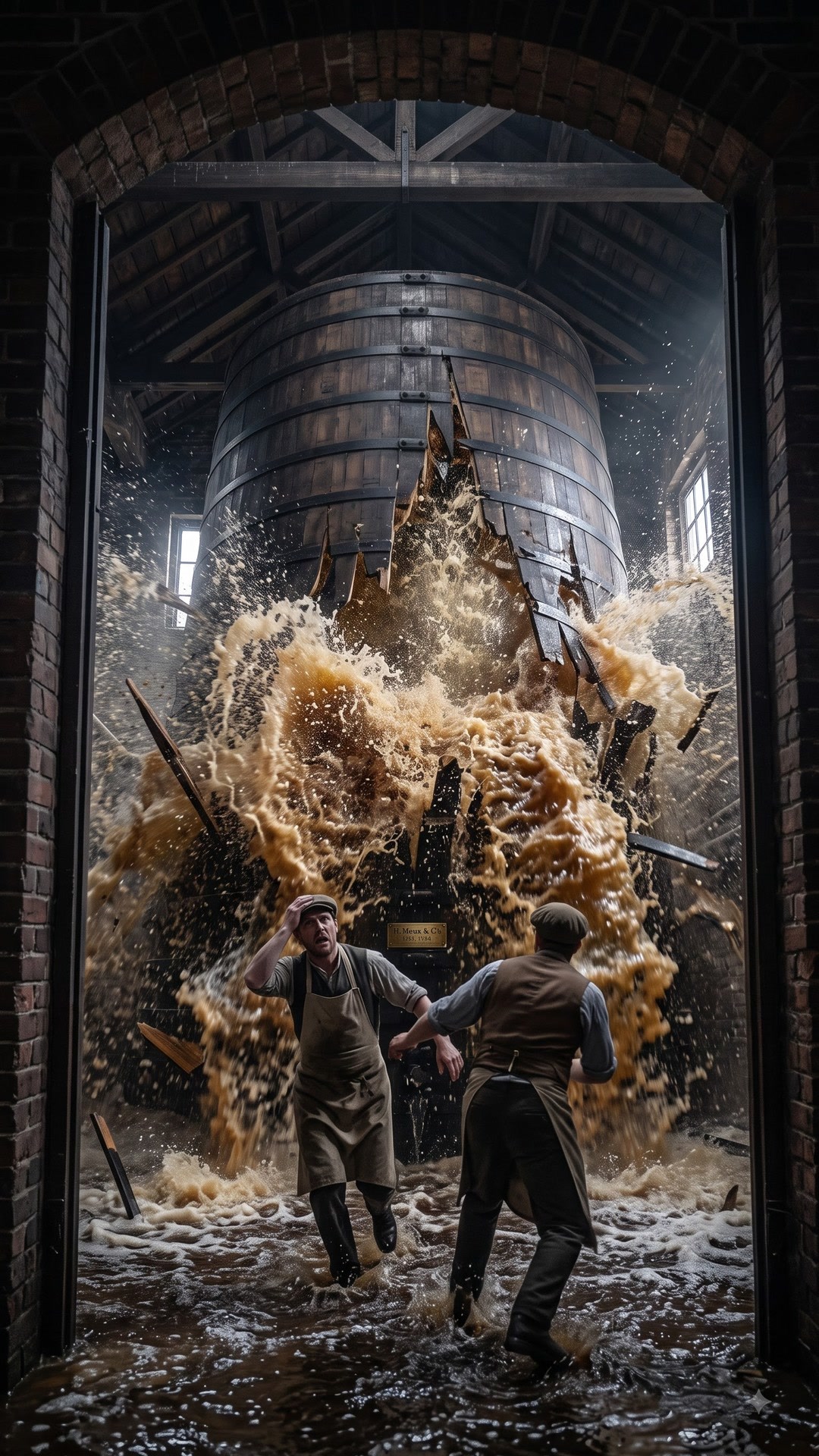
AI image animation works confidently when the photo has one clear subject and a clean composition. The easier the scene is to read, the more precisely the model will understand what to move. Before uploading, check your frame against this short list.
No suitable image? Generate one first in Nano Banana — you'll get a frame built for animation: the right composition, a clean background, controlled style. How it works is covered in the Nano Banana for photos overview.
- One main subject in focus: a portrait, an object, or a landscape with a clear center.
- Even lighting — no deep shadows or blown-out highlights.
- Enough sharpness: a blurry low-res photo will get even mushier after generation.
- Minimal text and logos in frame — AI often distorts lettering.
- Calm poses: detailed hands in motion are a known weak spot for models.
How to bring a photo to life in Reelora: step by step
Prepare your photo
Pick a sharp frame with one main subject and even lighting. Got none? Generate one in Nano Banana for your specific scene.
Upload the image to your project
Drag the file into the editor. Reelora runs in the browser, so there's nothing to install.
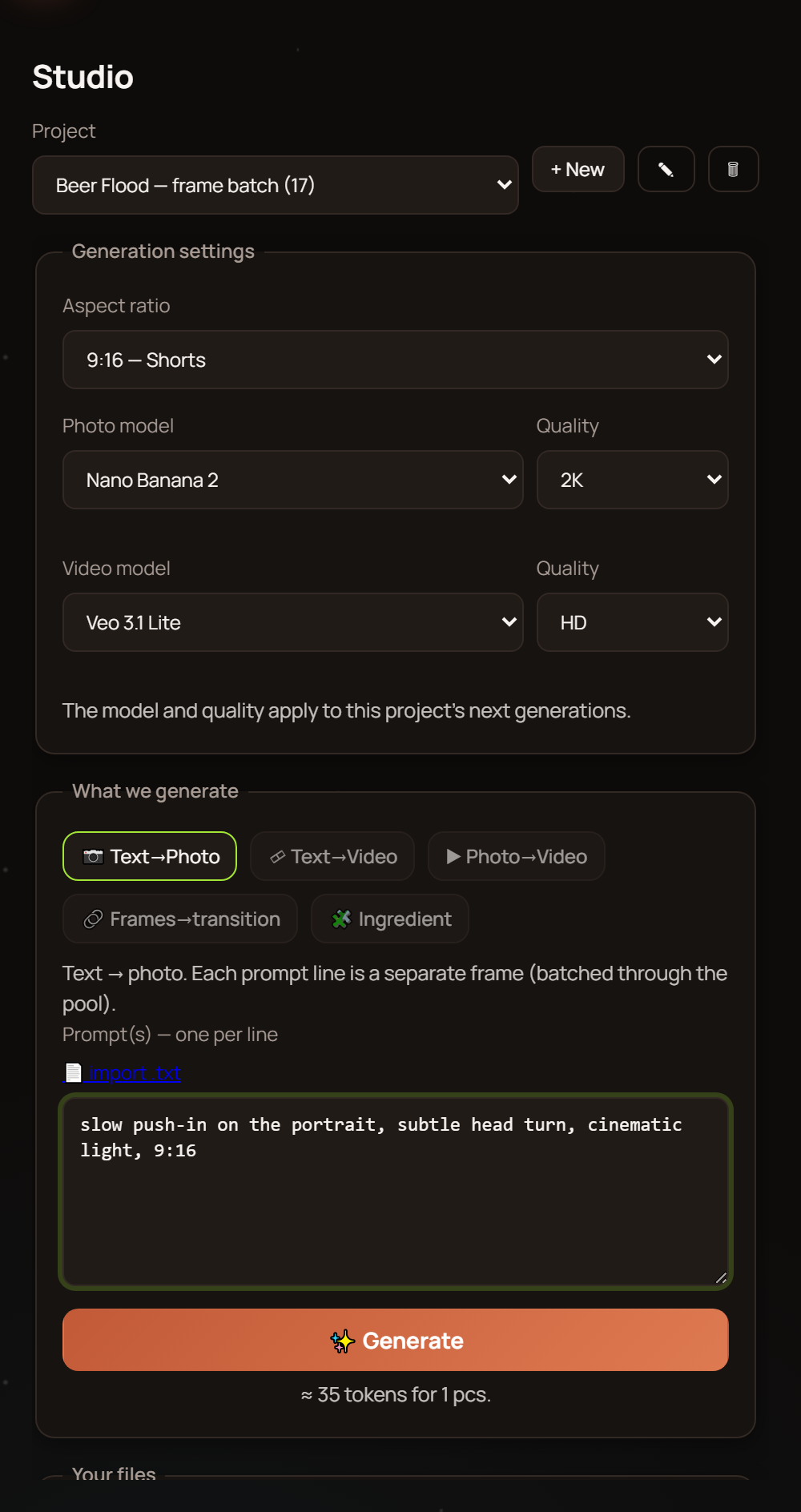
Describe the motion in the prompt
Two parts: what the camera does and what the objects in frame do. Specifics instead of a vague "make it look nice".
Run the generation
The model will build a video where your photo is the first frame. The first pass shows the direction; each run after gets more precise.
Check the result
Look at faces, hands, text, and the physics of motion. Something off? Tweak the prompt and regenerate just that frame.
Drop the frame into your clip
Use it to replace any scene or add a new one. Then comes voiceover, subtitles, and automatic assembly into a finished clip.
Camera and object motion: how to describe it in a prompt
A working prompt for animating a photo has three parts. First, the camera: "slow push-in", "light orbit around the subject", "smooth pan left to right". Second, objects: "hair moving in the wind", "steam rising from the cup", "a person blinks and barely smiles". Third, pace and mood: "calm, smooth, cinematic".
The main rule: less is more. One or two motions per frame give stable results. Ask for an orbit, a weather change, and active character action at once, and the model will start inventing its own stuff and break the geometry.
Ready-made phrasings for portraits, products, and landscapes are collected in the photo prompts guide. Use them as a base and adapt them to your frame.
Common artifacts and model refusals: what to do
Even a perfect prompt won't protect you from artifacts. Here's what happens most often:
Everything is fixed the same way: simplify the prompt, drop extra motions, add clarifications like "slowly, no appearance changes" — and regenerate the frame. In Reelora regeneration doesn't touch the rest of the clip, so experiments cost only a few minutes.
A special case is when the model outright refuses to animate the image: moderation kicked in, or the frame is too complex for motion. Don't fight the generator — turn the photo into video another way. Layer effects and overlays onto the static frame, and it becomes a living scene right at the editing stage. The full toolkit is shown in the overlays and effects overview.
- Facial features "melt" between frames.
- Distorted hands and fingers, especially when they're holding something.
- Text and logos read incorrectly or "breathe".
- Objects appear in frame that weren't in the photo.
- Motion comes out jerky even though you asked for smoothness.
FAQ about animating photos
Which is better: generating video from text or from a photo?
If a specific composition matters — from a photo: the model takes your frame as the base, and you only describe the motion. Choose text generation when you can leave the visuals to the AI.
Why does the model refuse to animate my photo?
Most often moderation kicks in, or the frame is too complex: many people, text, chaotic details. Try simplifying the image or layering effects and overlays on top — they'll turn the photo into video without generation.
How many motions can I set in one prompt?
One or two is optimal: camera motion plus object motion. The more parallel actions in the prompt, the higher the chance of artifacts and invented details.
Can I replace a bad frame without reassembling the whole clip?
Yes. Any frame in Reelora can be regenerated or replaced separately — voiceover, subtitles, and the rest of the edit stay in place.
Which photos are hardest to animate?
Frames with detailed hands, text, mirrors, and complex physics: water, smoke, fabric in motion. These are honest weak spots of AI image animation, so such scenes are better simplified or replaced.
Can I animate my own photo instead of a generated one?
Yes. Your own photos and videos can be added at any point — bring them to life via image-to-video or simply drop them into the edit instead of generated frames.
Does photo quality affect the result?
Directly: a sharp image with even lighting gives predictable animation, a blurry one gives mushy details. If the source is weak, generate a clean frame in Nano Banana first, then animate it.
See also
Turn a photo into video in minutes
Upload an image, describe the motion — and drop the finished frame into your clip. Generation, editing, voiceover, and subtitles — all in one studio.
Animate your photo